How to Clean iPhone Storage Without Deleting a Single Photo
You open the Settings app and see it again: "iPhone Storage Almost Full." Every iPhone user hits this wall eventually, and the instinct is to start deleting. But what if you could free up storage on iPhone without deleting photos you care about? Compression, format conversion, and duplicate detection give you gigabytes back while keeping every memory intact.
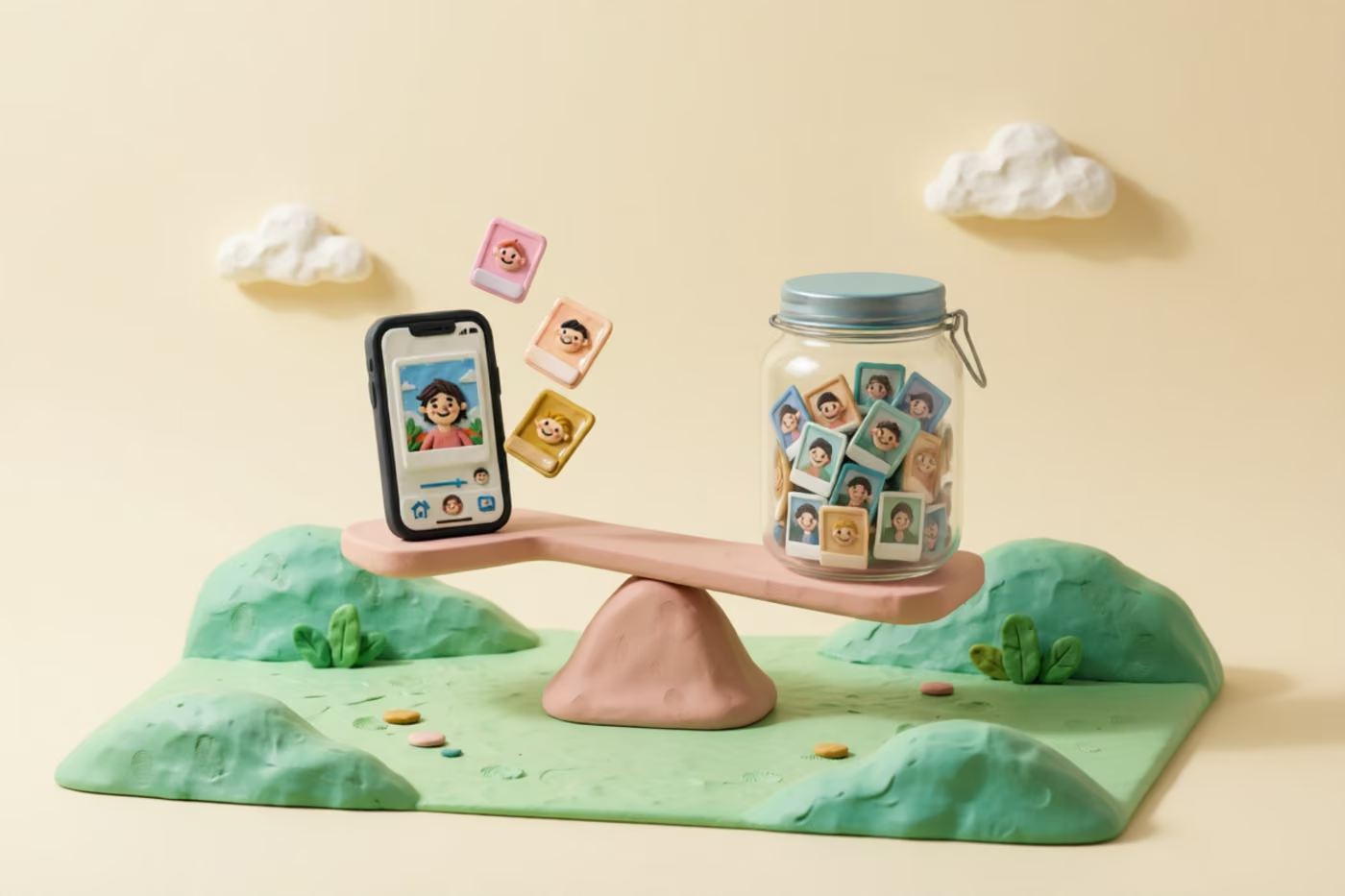
This guide walks through a zero-delete strategy that works whether you have 2,000 photos or 20,000. You will learn how to compress videos, shrink photo file sizes, convert Live Photos, and safely remove only true duplicates — all without losing a single image from your library. The entire process can be done in one session with a free, open-source app that runs entirely on your iPhone.
The Zero-Delete Strategy
Most "clean up your iPhone" advice starts and ends with deleting. Offload apps, delete old messages, remove photos you do not need. That advice ignores a fundamental truth: the photos on your phone are there because you want them. The problem is not the number of files — it is their size.
Modern iPhones shoot 4K video at 60 fps, producing files that average 400 MB per minute. A 48-megapixel HEIF photo can exceed 5 MB. Screenshots saved as PNG waste space compared to JPEG. Live Photos bundle a 3-second video clip alongside every still frame. These file formats were chosen for quality, not for storage efficiency.
The zero-delete strategy flips the script. Instead of removing content, you re-encode it at optimized settings. A 1.2 GB vacation video can shrink to 400 MB in HEVC without any visible difference on a phone screen. A burst of 30 nearly identical screenshots can be consolidated. The goal is simple: same photos, smaller files, zero loss of memories.
This approach is especially powerful for users who have accumulated years of media. A library with 15,000 photos and 500 videos often contains 10–20 GB of reclaimable space just from compression alone. That is enough to install a major iOS update, download offline maps, or simply stop seeing that dreaded storage warning every week.
Step 1: Compress Videos
Videos are the single largest storage consumer in most iPhone libraries. A one-minute 4K 60 fps clip from an iPhone 15 Pro averages 400–600 MB. Most users have dozens or hundreds of these clips, meaning video alone can account for 20–50 GB of storage. Compressing video is the highest-impact action you can take.
TidyByte uses Apple's AVAssetExportSession to re-encode videos in HEVC (H.265), which delivers the same visual quality at roughly half the bitrate of H.264. Because every iPhone since the iPhone 8 has a hardware HEVC encoder, this process is fast — a typical 500 MB video compresses in 30–60 seconds. The app shows real-time progress so you know exactly where you are.
What to expect from video compression
- 4K 60 fps clips: Typically shrink by 50–65%. A 500 MB clip becomes 175–250 MB.
- 4K 30 fps clips: Expect 40–55% reduction. The lower frame rate means less redundancy to exploit.
- 1080p clips: Compress by 30–45%. Already relatively efficient, but gains still add up over hundreds of clips.
- Slow-motion video: Often the best candidates because they record at 120 or 240 fps, creating enormous files that compress extremely well.
The compressed video replaces the original in your library. If you ever need the full-quality version, you can re-export from the original — but in practice, the compressed version is visually indistinguishable on any phone, tablet, or social media platform. For a deeper look at the compression pipeline, see the TidyByte features page.
Step 2: Compress Photos
Photos are smaller than videos, but they are far more numerous. A library with 10,000 photos might average 3–5 MB each, totaling 30–50 GB. Many of those bytes are wasted on metadata, inefficient encoding, or unnecessary quality margins that no human eye can detect on a 6-inch screen.
TidyByte compresses photos using Apple's ImageIO framework, re-encoding JPEGs at an optimized quality level and converting PNG screenshots to JPEG. Screenshots are a prime target: the iPhone saves them as lossless PNG files even though they contain text and UI elements that JPEG handles perfectly well at quality 85. Converting a single 3 MB PNG screenshot to a 600 KB JPEG saves 80% with zero visible difference.
Photo compression benchmarks
| Photo Type | Avg Original | Avg Compressed | Savings |
|---|---|---|---|
| JPEG (camera) | 4.2 MB | 2.4 MB | ~43% |
| HEIF (camera) | 2.8 MB | 1.9 MB | ~32% |
| PNG screenshot | 3.1 MB | 0.6 MB | ~80% |
| WhatsApp/social save | 1.5 MB | 0.8 MB | ~47% |
If your library contains 3,000 screenshots alone, converting them from PNG to JPEG can recover nearly 7.5 GB. That is space you get back without deleting a single image. For most users, photo compression is the second-biggest gain after video compression.
Step 3: Convert Live Photos
Live Photos are one of the iPhone's most-loved features — and one of the most space-hungry. Every Live Photo bundles a 1.5-second video before and after the still frame, adding 3–8 MB per image. If you have 2,000 Live Photos, that hidden video data alone consumes 6–16 GB.
The truth is, most Live Photos are never viewed as motion. You take a quick snapshot, it happens to be a Live Photo because that is the default mode, and you never press and hold to play it. Converting these to standard still photos strips the unused video data and recovers significant space.
TidyByte lets you batch-convert Live Photos to stills. The app shows you which photos are Live and lets you decide: keep the motion for special moments, or convert the rest. Each conversion typically saves 3–6 MB. For a library with 3,000 Live Photos where you keep 500 as-is and convert the remaining 2,500, you recover roughly 7.5–15 GB — enough to free up storage on iPhone without deleting photos from your collection.
When to keep Live Photos as-is
- Action shots: Kids running, pets playing, sports — motion adds real value here.
- Scenic moments: Sunsets, waterfalls, wind through trees. The motion makes these special.
- Group photos: Blinking is common in group shots, and Live Photo lets you pick a better frame.
For everything else — food photos, receipts, screenshots that somehow became Live Photos, routine selfies — conversion is a no-brainer. You keep the still image, lose the dead weight, and never notice the difference. Learn more about how TidyByte handles Live Photo conversion on the features page.
Step 4: Remove True Duplicates Only
This is the one step in the zero-delete strategy where actual deletion happens — but only for files that are byte-for-byte identical. Duplicates accumulate in ways most people do not realize: saving a photo from Messages, re-downloading from iCloud, sharing between apps, or importing from a computer. Each copy is a pure waste of space.
TidyByte uses SHA-256 hashing to identify exact duplicates. This is not fuzzy matching — it compares the actual file contents. Two photos that look the same but differ by even one byte are treated as separate files. This conservative approach means you never accidentally delete a photo that is not truly identical to another.
The app also detects near-duplicates using Apple's Vision framework, which generates perceptual feature prints for each image. Photos with a similarity score above a configurable threshold are grouped together, but you make the final call on which one to keep. This is especially useful for burst shots where you took 15 photos of the same scene but only need one.
Duplicate detection safety
Unlike aggressive "clean your library" apps that auto-delete based on heuristics, TidyByte puts you in control. Exact duplicates are clearly marked so you can review before removing. Near-duplicates are grouped for your consideration — the app suggests a best pick based on sharpness and composition analysis, but the decision is always yours. For a full breakdown of the detection approach, check the TidyByte features page.
Expected Space Savings
The numbers below are based on typical iPhone libraries analyzed by TidyByte. Your results will vary depending on how many videos you shoot, whether you use Live Photos, and how much duplicate content has accumulated. These ranges represent realistic expectations, not best-case marketing numbers.
| Library Size | Video Compression | Photo Compression | Live Photo Conversion | Total Reclaimed |
|---|---|---|---|---|
| 2,000 items | 1–2 GB | 0.5–1 GB | 0.3–0.8 GB | 2–4 GB |
| 5,000 items | 3–5 GB | 1.5–3 GB | 1–2 GB | 5–10 GB |
| 10,000 items | 5–10 GB | 3–6 GB | 2–4 GB | 10–20 GB |
| 20,000+ items | 10–20 GB | 5–10 GB | 3–8 GB | 18–38 GB |
These savings come from compression alone — no deletion required. Add in duplicate removal and the numbers climb further. A library with 10,000 items and a few hundred duplicate pairs might see 12–25 GB reclaimed in a single session. That is enough to free up storage on iPhone without deleting photos you actually care about, and without paying for iCloud storage tiers you do not need.
The best part is that this is a one-time process for existing content. Going forward, TidyByte can periodically scan for new duplicates and compress newly added media, keeping your storage lean without any ongoing effort on your part.
Frequently Asked Questions
Can I free up storage without deleting photos?
Yes. Modern compression codecs can shrink photo and video files by 40–80% with no visible quality loss. Converting Live Photos to stills and removing true duplicates are additional strategies that free up storage on iPhone without deleting photos you actually want to keep. TidyByte combines all three approaches into a single workflow.
How do I compress photos on iPhone?
TidyByte compresses photos directly on your iPhone using Apple's built-in ImageIO framework. The app re-encodes JPEG photos at an optimized quality level and converts PNG screenshots to JPEG, typically saving 30–50% per file. All processing happens on-device, so your photos never leave your phone.
Does video compression work on iPhone?
Yes. TidyByte uses AVAssetExportSession to re-encode videos in HEVC (H.265) at a lower bitrate. iPhone 8 and later have hardware HEVC encoding, so compression is fast and efficient. A typical 1 GB video shrinks to 300–500 MB with minimal perceptible quality change.
How much space can I save by compressing?
Most users reclaim 2–5 GB from a 10,000-item library. Video compression delivers the largest gains — often 50–70% per clip. Photo compression adds another 30–50% per image. Duplicate removal can recover additional gigabytes depending on how many copies have accumulated.
Is there an app that compresses without deleting?
TidyByte is a free, open-source app built around a zero-delete compression strategy. It compresses videos, optimizes photos, and converts Live Photos — all while keeping your originals safe. If you want, it also finds true duplicates for optional removal, but compression alone can reclaim significant space without deleting anything.
Ready to clean up your photo library?
TidyByte is free, runs 100% on your device, and takes just minutes to use.