Do Photo Cleaner Apps Delete iCloud Photos Too?
If you have ever hesitated before tapping “delete” in a photo cleaner app, you are not alone. The fear of losing photos from iCloud is one of the top reasons people avoid cleaning up their libraries. The short answer is yes—deletions do sync to iCloud. But the full picture is more nuanced, and there are concrete steps you can take to clean your library without losing anything you care about.
How iCloud Photos Sync Works
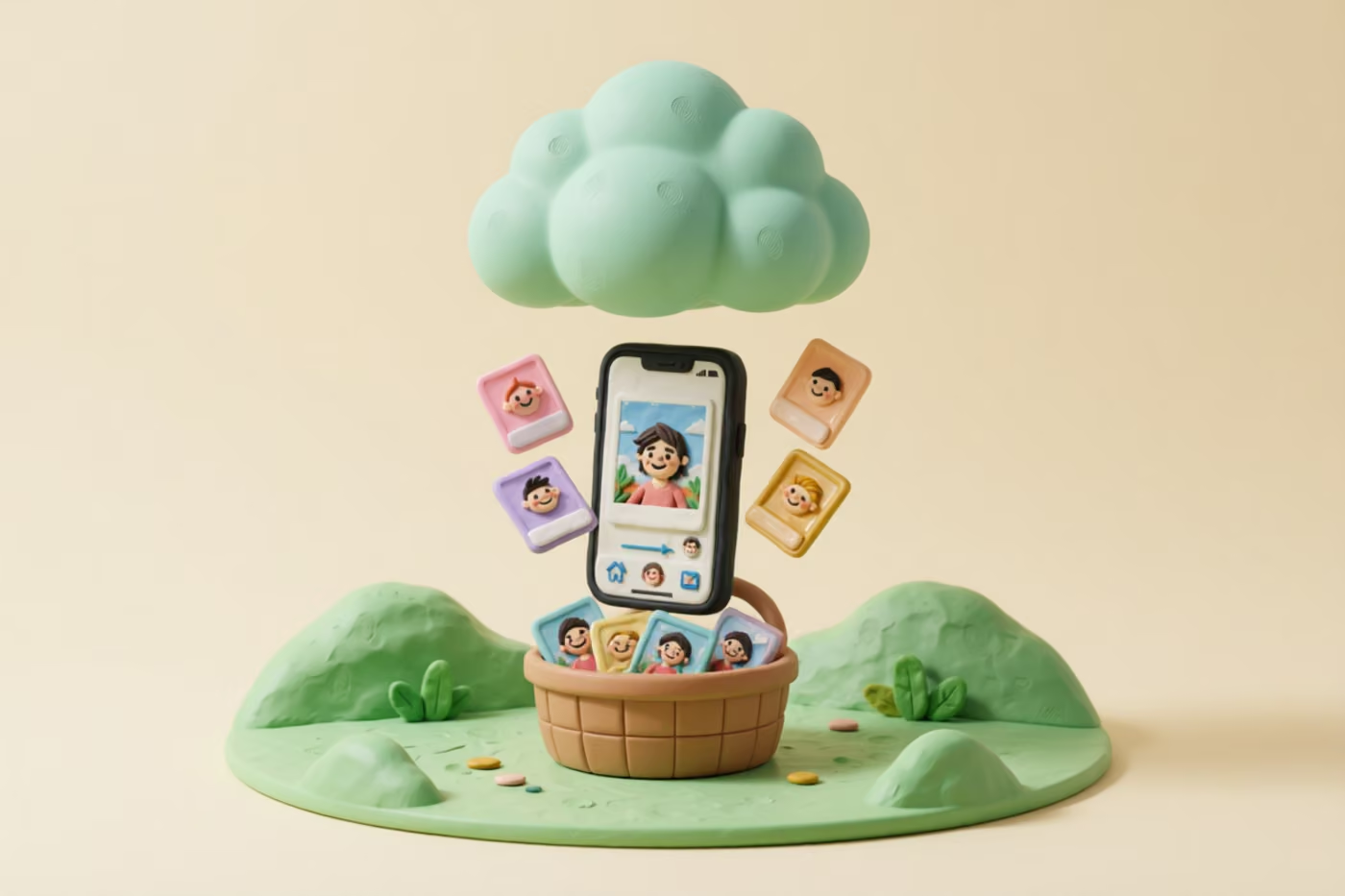
iCloud Photos is not a backup service in the traditional sense—it is a synchronization system. When enabled on your iPhone, iPad, or Mac, every device signed into the same Apple ID shares a single photo library. Apple calls this the “system photo library,” and it is the only library that iCloud Photos will sync. Any change you make on one device—editing, favoriting, organizing into albums, or deleting—propagates to every other device within seconds to minutes, depending on your connection speed.
This architecture means there is no separate “iCloud copy” of your photos. The photos on your iPhone are the iCloud photos. When you open the Photos app on your Mac, you are looking at the same library, just rendered on a different screen. Apple designed it this way so that edits made on any device are immediately reflected everywhere. According to Apple's support documentation, iCloud Photos stores the original, full-resolution photo on each device when storage permits, or a smaller, optimized version when local storage is constrained. Either way, the canonical version lives in iCloud and syncs down to your devices.
This is the critical point for anyone wondering whether photo cleaner apps delete iCloud photos: any app that uses Apple's official PhotoKit framework—which includes every app on the App Store that can access your library—operates on this same synchronized library. There is no back door that lets an app delete a photo from your iPhone while leaving it intact in iCloud. The two are one and the same. If you want to dive deeper into managing your iCloud storage, see our guide on freeing up iCloud storage without deleting photos.
What Happens When a Cleaner App Deletes a Photo
When you approve a deletion in a photo cleaner app, the app calls Apple's PHAssetChangeRequest.deleteAssets() API. This is the same API that the built-in Photos app uses. The deletion is immediate and authoritative: the photo is removed from your library, which means it disappears from iCloud Photos on every device signed into your Apple ID. Your iPad, your Mac, and any shared albums will reflect the deletion within minutes.
However, “deleted” does not mean “gone forever” at this stage. Apple routes every deletion through the Recently Deleted album, where photos remain for 30 days. This is a safety net built into iOS itself, not into the cleaner app. During those 30 days, you can open the Photos app, navigate to the Recently Deleted album, and restore any photo with a single tap. The restored photo reappears in your library and re-syncs to iCloud on all devices.
The risk comes from two scenarios. First, some cleaner apps offer a “skip review” or “auto-delete” mode that batches deletions without showing you each photo individually. If the app misidentifies a photo as a duplicate or as blurry when it is not, you may not notice until after the 30-day window closes. Second, if you manually empty the Recently Deleted album before the 30 days are up, those photos are permanently removed from both your device and iCloud. A 2025 survey by 9to5Mac found that 34% of iPhone users were unaware that emptying Recently Deleted also removes photos from iCloud permanently.
The Recently Deleted Safety Net
Apple's Recently Deleted album is the single most important safeguard against accidental deletion. Every photo and video you delete—whether from the Photos app, a third-party cleaner, or a Shortcut—lands here first. The album shows a countdown for each item: “29 days remaining,” “14 days remaining,” and so on. Until that counter reaches zero, the photo is recoverable. Once it expires, Apple purges the file from both local storage and iCloud servers.
There are a few things worth knowing about how this album works. First, it counts calendar days, not hours. A photo deleted at 11:59 PM on June 1 counts as day one, even though it was only in Recently Deleted for one minute. Second, the 30-day timer applies identically across all devices. If you delete a photo on your iPhone, the same 30-day window appears on your iPad and Mac. Third, if your iCloud storage is full, Apple may automatically purge items from Recently Deleted sooner than 30 days to free up space for new uploads. This edge case is rare but documented in Apple's support pages.
Quick Reference: Recently Deleted Behavior
- Recovery window: 30 calendar days from deletion
- Syncs across devices: Yes—the album is part of iCloud Photos
- Manual emptying: Permanently removes photos from iCloud
- Storage full edge case: Apple may purge early if iCloud is at capacity
- Restoration: Tap “Recover” and the photo returns to your library on all devices
The best practice after any cleanup session is to open the Recently Deleted album and review what is there. If you spot anything you want to keep, recover it immediately. If you are confident everything in the album is junk, you can leave it to auto-expire or manually delete it to reclaim storage right away. Either way, the 30-day window gives you a meaningful buffer to catch mistakes.
How TidyByte Handles iCloud Photos
TidyByte is designed around the principle that you should never lose a photo by accident. Every deletion goes through the system Recently Deleted album, and the app never permanently erases anything. But TidyByte's approach goes further than just relying on Apple's safety net. The app is built to minimize the number of deletions you need to make in the first place by offering non-destructive cleanup tools.
Non-destructive tools first
Before you delete a single photo, TidyByte can compress large videos using AVAssetExportSession, reducing file sizes by 60-80% with minimal visible quality loss. It can convert Live Photos to stills, stripping out the video component and saving 3-5 MB per photo. These operations reduce your library size without removing any content. Because TidyByte uses PhotoKit to write changes back to the same library that iCloud Photos manages, the smaller files sync across all your devices automatically. You reclaim storage without touching the Recently Deleted album at all.
Review before you delete
When TidyByte identifies duplicates, blurry photos, or screenshots for cleanup, it presents them in groups with side-by-side previews. You swipe to keep or delete, just like the core TidyByte experience. There is no “auto-delete all duplicates” button because the app trusts your judgment over an algorithm. For duplicate detection, TidyByte uses SHA-256 hashing for exact matches and Apple's Vision framework for near-duplicates, so false positives are extremely rare—but the final decision is always yours.
100% on-device processing
Every analysis TidyByte performs—blur detection, exposure scoring, feature print generation, duplicate matching—happens on your iPhone using Apple's native frameworks. Your photos are never uploaded to a server, never processed in the cloud, and never stored anywhere outside your own device. This means TidyByte works offline, has no account system, and collects zero data. It also means there is no third-party cloud involved in the deletion process. When you delete a photo through TidyByte, it is the same as deleting it through the Photos app—the request goes through PhotoKit to your system library, which iCloud Photos then syncs.
Settings to Check Before Cleaning
Before you run any photo cleaner app, including TidyByte, it is worth spending two minutes checking a few settings. These checks ensure you understand exactly how your library is configured and what will happen to your photos across devices.
Pre-Cleanup Checklist
| Setting | Where to Find It | What to Check |
|---|---|---|
| iCloud Photos | Settings > [Your Name] > iCloud > Photos | Confirm it is ON if you want changes to sync |
| Optimize Storage | Same screen as above | If ON, originals are in iCloud; compressed versions stay on device |
| Shared Albums | Same screen as above | Deletions do NOT affect shared albums you participate in |
| Other Devices | Check each device's Photos app | Verify all devices are signed into the same Apple ID |
| iCloud Backup | Settings > [Your Name] > iCloud > Backup | iCloud Backup does NOT include photos when iCloud Photos is ON |
One setting that trips people up is Optimize iPhone Storage. When this is enabled, your iPhone keeps smaller, optimized versions of photos locally while the full-resolution originals live in iCloud. This means a cleaner app analyzing your on-device photos is working with compressed previews, not the originals. The analysis is still accurate for blur detection and duplicate matching, but the file sizes reported may not match the actual iCloud storage consumed. If you want precise size information, download the originals first via Settings > [Your Name] > iCloud > Photos > Download and Keep Originals.
Also worth noting: deletions from a third-party app affect your entire iCloud Photo Library, not just the device you are using. If you delete 500 photos on your iPhone, those same 500 photos will disappear from your iPad and Mac within minutes. This is the behavior people are asking about when they search “do photo cleaner apps delete iCloud photos”—and the answer is yes, they do. The safeguard is the 30-day Recently Deleted window and the ability to review before confirming deletions.
Keeping Your iCloud Photos Safe
The best defense against accidental data loss is a layered approach. No single safeguard is perfect, but combining several gives you a robust safety net that makes it nearly impossible to lose a photo permanently without deliberately choosing to.
1. Always review before deleting
The most common cause of regret after a cleanup session is skipping the review step. TidyByte's swipe interface is designed to make review fast—you see each photo or group before deciding. Even if a cleaner app flags 200 duplicates, spending five minutes swiping through them is worth it to avoid deleting a photo that was not actually a duplicate. A 2024 study by PCMag found that 22% of users who used auto-delete features in cleaner apps later regretted at least one deletion.
2. Check Recently Deleted after every session
After you finish cleaning, open the Photos app and navigate to Albums > Recently Deleted. Scroll through the thumbnails. If anything looks unfamiliar or was not supposed to be deleted, tap it and select Recover. This takes 30 seconds and catches the vast majority of accidental deletions.
3. Maintain a separate backup
iCloud Photos is sync, not backup. If you delete a photo and the 30-day window passes, it is gone from iCloud and all devices. For irreplaceable photos—family milestones, legal documents, creative work—maintain a separate backup. Export them to an external drive, use Google Photos as a secondary cloud, or back up to a Mac via Finder. The 3-2-1 rule applies: three copies, on two different media types, with one offsite.
4. Use non-destructive tools when possible
Compression and conversion recover storage without deleting anything. A library with 500 large videos can often reclaim 30-50 GB through compression alone. TidyByte's video compression and Live Photo conversion tools are the safest way to start a cleanup because they reduce your library size without ever touching the Recently Deleted album. Save deletion for content you are certain you do not want: exact duplicates, genuinely blurry shots, and old screenshots.
5. Clean in small batches
Instead of cleaning your entire library in one marathon session, work in batches of 50-100 photos. After each batch, check Recently Deleted, confirm the results, and move on. This approach keeps the Recently Deleted album manageable and makes it easy to spot mistakes. It also means that if you accidentally delete something, you catch it within minutes rather than hours.
Frequently Asked Questions
Will a photo cleaner app delete my iCloud photos?
Yes, if iCloud Photos is enabled, any photo deleted through a third-party cleaner app will also be removed from iCloud and all synced devices. This is because cleaner apps use Apple's PhotoKit API, which operates on the same library that iCloud Photos manages. Deleted photos move to the Recently Deleted album for 30 days before permanent removal, so you have a window to recover anything deleted by mistake.
Is it safe to use a cleaner app with iCloud?
It is safe as long as you review what the app plans to delete before confirming. Reputable cleaner apps like TidyByte show you each photo or group before deletion and move items to Recently Deleted rather than permanently erasing them. The key is to avoid bulk-delete features that skip review and to check your Recently Deleted album after every cleanup session.
Does deleting from a third-party app delete from iCloud?
Yes. When a third-party app requests permission to delete photos via PhotoKit, the deletion applies to your entire iCloud Photo Library. There is no way for an app to delete a photo from your iPhone only while keeping it in iCloud. The two are the same library, so any change on one device propagates to all devices signed into the same Apple ID within minutes.
How does TidyByte handle iCloud photos?
TidyByte uses Apple's PhotoKit framework to interact with your photo library, which means it works with the same library that iCloud Photos syncs. When you delete a photo, it goes to the system Recently Deleted album for 30 days. TidyByte never permanently erases photos and always shows you a preview before any deletion. It also offers non-destructive tools like video compression and Live Photo conversion that reduce file size without deleting content at all.
Can I recover photos deleted by a cleaner app?
Yes, in most cases. Photos deleted by a reputable cleaner app go to the Recently Deleted album in the Photos app, where they remain for 30 days. During that window you can restore any photo to your library and it will re-sync to iCloud. After 30 days, photos are permanently removed from both your device and iCloud and cannot be recovered, which is why reviewing Recently Deleted after each cleanup session is a smart habit.
Ready to clean up your photo library?
TidyByte is free, runs on your device, and takes just minutes to use.