How to Check Your iPhone Storage Breakdown
Your iPhone has finite storage, and once it fills up you can no longer take photos, download apps, or install updates. Learning how to check your iPhone storage breakdown is the first step toward reclaiming space and keeping your device running smoothly. In this guide you will learn exactly where to find the storage screen, what every category means, and how a free tool like TidyByte gives you a deeper view than iOS alone.
Using Settings to Check Storage
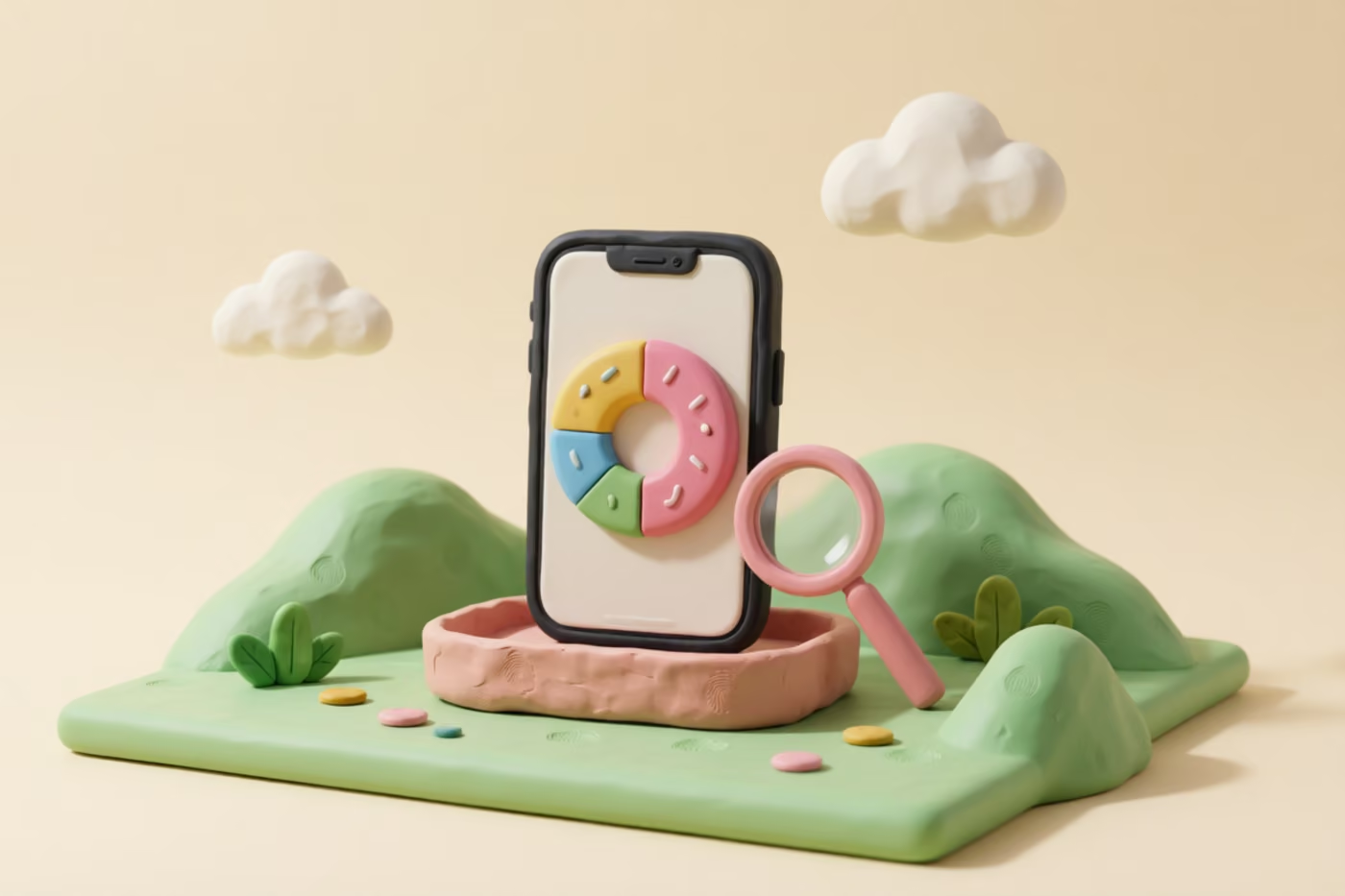
iOS includes a built-in storage screen that gives you a clear overview of how your device space is allocated. To reach it, open the Settings app, tap General, then tap iPhone Storage. The page loads a color-coded bar at the top that represents your total capacity and how much is already used.
Below the bar, iOS lists every app on your phone ranked by storage consumption. Each entry shows the app name, the amount of space it occupies, and when you last opened it. Tapping an individual app reveals two options: Offload App removes the binary but keeps its documents and data, while Delete App removes everything. For apps like Messages, you can also manage attachments directly from this screen.
The screen also shows recommendations from iOS, such as enabling iCloud Photos, offloading unused apps, or reviewing large message attachments. These suggestions are useful but generic. They do not tell you which specific photos are blurry, which videos are oversized, or how many duplicate images you have. That is where knowing how to check iPhone storage breakdown goes beyond the surface and where a dedicated tool becomes valuable.
Quick tip: The storage screen can take 10-30 seconds to load on devices with many apps because iOS calculates each app's size on the fly. If the numbers look wrong, pull down to refresh or restart your device and check again.
Understanding Each Category
The color-coded storage bar at the top of the iPhone Storage screen divides your space into six categories. Understanding what each one represents helps you decide where to focus your cleanup efforts.
- Apps — The combined size of all installed application binaries and their local data. Games and creative apps like video editors tend to be the largest. A single game can easily consume 1-3 GB.
- Photos — Everything in your photo library, including images, videos, Live Photos, and edited versions. On most devices this is the single largest category, often accounting for 40-60% of used storage.
- iOS — The operating system itself plus essential system resources. This typically takes 8-12 GB depending on your iPhone model and iOS version. You cannot reduce it.
- System Data — Fonts, dictionaries, Siri voices, and keychains. This is separate from the iOS category and usually stays between 2-5 GB.
- Messages — Conversations, photos, videos, and attachments stored in the Messages app. If you never delete old conversations, this can quietly grow to tens of gigabytes.
- Other — Caches, logs, temporary files, and miscellaneous data iOS cannot classify. We will cover this in detail in the next section.
A typical iPhone user with 128 GB of storage will see Photos take up 30-50 GB, Apps consume 15-25 GB, and Messages accumulate 5-15 GB over a few years. The exact numbers vary, but the pattern is consistent: photos and videos dominate. If you want a breakdown by media type, resolution, and age rather than just app, TidyByte can scan your library and show you exactly where the space is going.
What 'Other' Storage Means
The "Other" category is one of the most confusing parts of any iPhone storage breakdown. In recent iOS versions Apple has renamed it to "System Data," but the underlying contents remain the same: caches, temporary files, logs, downloaded Siri voices, fonts, and data that iOS does not attribute to a specific app.
On a healthy device, Other storage typically ranges from 2 GB to 10 GB. However, it can balloon unexpectedly. Common causes include streaming apps that cache large amounts of audio or video, Safari storing website data, and system logs that accumulate over months of uptime. Some users report seeing 20 GB or more in this category after an iOS update or a period of heavy app usage.
How to Reduce Other Storage
- Restart your iPhone. A simple reboot clears many temporary caches. This alone can reclaim 1-3 GB in some cases.
- Clear Safari data. Go to Settings > Safari > Clear History and Website Data. Safari can store several gigabytes of site data over time.
- Delete and reinstall heavy apps. Apps like Spotify, Netflix, and podcast clients build up local caches. Deleting and reinstalling them resets the cache to zero.
- Update iOS. Apple occasionally improves cache management in new releases. Keeping your OS current can prevent runaway cache growth.
If Other storage remains stubbornly high after these steps, a full device backup and restore is the most reliable fix. Before going that far, though, check whether your photo library is the real culprit. Many users find that once they clean up duplicates and large videos with TidyByte, the overall storage pressure drops enough that Other storage shrinks on its own.
TidyByte's Detailed Dashboard
While the iOS storage screen tells you how much space Photos uses, it does not tell you why. TidyByte fills that gap. When you open TidyByte and grant photo library access, it scans your entire library and builds a detailed dashboard showing exactly what is consuming space.
The dashboard breaks your library down by media type: photos, videos, screenshots, Live Photos, burst shots, and screen recordings. Each category shows the total count, combined file size, and average size per item. For example, you might discover that 200 screen recordings account for 12 GB, or that 1,400 burst photos (each containing 5-10 near-identical frames) are wasting 8 GB.
What TidyByte's Dashboard Shows
- Duplicate detection — Finds exact copies and visually similar photos using on-device Vision analysis. Most users discover 500-2,000 duplicates occupying 2-5 GB.
- Blurry photo finder — Identifies out-of-focus shots you probably do not want to keep. Saves you from manually scrolling through years of photos.
- Large video detection — Surfaces videos over 100 MB so you can decide whether to keep, compress, or delete them. A single 4K video at 60 fps can be 400 MB per minute.
- Screenshot cleanup — Groups screenshots by age and app so you can bulk-delete old ones you no longer reference.
- Storage estimate per category — Shows how much space you would free up by acting on each suggestion, so you can prioritize the highest-impact actions.
Everything runs on-device. TidyByte does not upload your photos to any server, and it does not require an account. The scan itself takes 1-3 minutes depending on library size, and the results update in real time as you delete items. If you have been trying to figure out how to check iPhone storage breakdown at a granular level, TidyByte gives you the answers that the Settings screen cannot.
Comparing iOS vs. TidyByte Views
Both iOS and TidyByte show your storage usage, but they serve different purposes. The iOS storage screen is a high-level overview designed to help you manage all types of data on your device. TidyByte is a focused tool that dives deep into your photo library, which is almost always the largest storage consumer.
| Feature | iOS Settings | TidyByte |
|---|---|---|
| Storage overview | All categories by app | Photo library deep dive |
| Duplicate detection | Not available | Exact + near-duplicate |
| Blurry photo detection | Not available | Automatic scoring |
| Large video identification | Sorted by app size | Individual file listing |
| Space savings estimate | Per app only | Per action category |
| Swipe-to-review interface | No | Yes — Tinder-style |
| Cost | Built-in | Free, no account |
The best approach is to use both. Start with the iOS storage screen to get the big picture, then open TidyByte to act on the photo library. Between the two, you will have a complete understanding of where your storage is going and a clear path to reclaim it. For more tips on managing storage, visit our features page or check out the TidyByte blog for additional guides.
When to Take Action
Not every iPhone needs immediate cleanup. If you have a 256 GB or 512 GB model and use less than 70% of it, you are in good shape. But there are clear warning signs that indicate it is time to act before you run into problems.
- Storage above 80%. Once you cross the 80% threshold, iOS starts showing storage warnings and may prevent you from taking photos or downloading updates. This is the most common trigger for users learning how to check iPhone storage breakdown for the first time.
- Cannot install iOS updates. Major iOS updates typically require 5-7 GB of free space. If you keep getting "insufficient storage" errors, your library is likely the biggest space consumer.
- Camera app refuses to capture. When available space drops below a few hundred megabytes, the Camera app will display a warning and stop working. This usually happens at the worst possible moment.
- Slow performance. iOS needs free space for virtual memory and temporary files. A nearly full device can feel sluggish even if the hardware is capable.
- Years of unsorted photos. If you have never deleted a photo, you almost certainly have thousands of duplicates, blurry shots, and old screenshots taking up space. A typical user accumulates 5-10 GB of unnecessary photos per year.
The good news is that reclaiming space does not require deleting your favorite memories. Most users can free up 5-15 GB in a single session by removing duplicates, compressing large videos, and clearing out screenshots. TidyByte makes this process fast and safe with its swipe interface and on-device processing. You review each suggestion one at a time and decide what to keep or delete, so nothing is removed without your approval.
Make it a habit to check your storage monthly. Set a calendar reminder if needed. Five minutes of maintenance each month prevents the panic of a full device when you need space most.
Frequently Asked Questions
How do I check what's using my iPhone storage?
Open Settings, tap General, then tap iPhone Storage. You will see a color-coded bar showing how much space each category uses, followed by a list of apps ranked by storage consumption. The page also shows when each app was last used and offers quick actions like Offload App.
What does 'Other' storage mean?
Other storage includes system caches, Safari data, Siri voices, logs, and temporary files that iOS does not classify under a specific app. It typically ranges from 2 GB to 10 GB on most devices, but can grow larger if caches are not cleared. Restarting your iPhone or clearing Safari data can reduce it.
How do I see a detailed storage breakdown?
The built-in iPhone Storage screen in Settings provides the most detail iOS offers natively, showing per-app usage and category totals. For even more granular insight, a free app like TidyByte can scan your photo library and break down storage by media type, resolution, age, and duplicate status.
Can TidyByte show me more detail than iOS?
Yes. TidyByte goes beyond the iOS storage screen by analyzing your photo library in detail. It identifies duplicate photos, blurry shots, large videos that could be compressed, and screenshots you no longer need. It also estimates how much space each category would free up, which iOS does not show.
Why is my storage full but I don't know why?
The most common hidden storage consumers are cached messages with attachments, downloaded music and podcasts, and years of accumulated photos and videos. iOS Offload Unused Apps can reclaim space from apps you rarely use. Checking Settings > General > iPhone Storage gives you the full picture, and a tool like TidyByte can identify exactly which photos and videos are the biggest space hogs.
Ready to clean up your photo library?
TidyByte is free, runs 100% on your device, and takes just minutes to use.