How to Use TidyByte: Complete Beginner's Guide
TidyByte is a free, open-source iPhone app that helps you reclaim storage by swiping through your photos the same way you would on a dating app. This guide walks you through every step — from downloading the app to mastering advanced cleanup tools — so you can free up gigabytes of space in a single sitting.
Downloading and Installing
TidyByte is available on the App Store as a free download with no in-app purchases, subscriptions, or hidden paywalls. Search for "TidyByte" on your iPhone or iPad, or visit the official TidyByte website and tap the download link. The app weighs in at under 15 MB, so it installs in seconds even on a slow connection.
Once installed, open TidyByte from your home screen. You will see the home dashboard immediately — no account creation, no email signup, no onboarding carousel. The app is designed to get out of your way and let you start cleaning right away. The home screen presents a grid of cleanup tools: Swipe, Duplicates, Screenshots, Blurry Photos, Large Videos, and the Storage Dashboard.
TidyByte requires iOS 17 or later and works on both iPhone and iPad. Because the swipe interface is optimized for portrait orientation, iPhone users get the most natural experience, while iPad users can take advantage of the larger screen to see more detail in each photo. The app is fully universal — one download covers all your Apple devices.
Granting Photo Library Permissions
The first time you open TidyByte, iOS will ask whether you want to grant access to your photo library. This permission is essential — without it, the app cannot scan, sort, or manage your photos. Tap "Allow Full Access" for the best experience. TidyByte uses this access to read metadata, detect duplicates, analyze blur levels, and display thumbnails.
If you prefer a more limited approach, you can choose "Select Photos" and grant access to specific albums. Keep in mind that TidyByte's duplicate detection and blur analysis work across your entire library, so limiting access may reduce the effectiveness of those tools. You can change this permission at any time by going to Settings > Privacy & Security > Photos on your iPhone.
Privacy note
TidyByte never uploads your photos to any server. All analysis — including blur detection, duplicate matching, and feature extraction — runs entirely on your device using Apple's Vision framework. Your photos never leave your iPhone. Read the full privacy policy for details.
One important detail: TidyByte does not request camera, microphone, location, or network permissions. The app operates in a completely offline sandbox. If you have parental controls or MDM profiles that restrict photo access, make sure TidyByte is whitelisted before you begin.
Your First Swipe Session
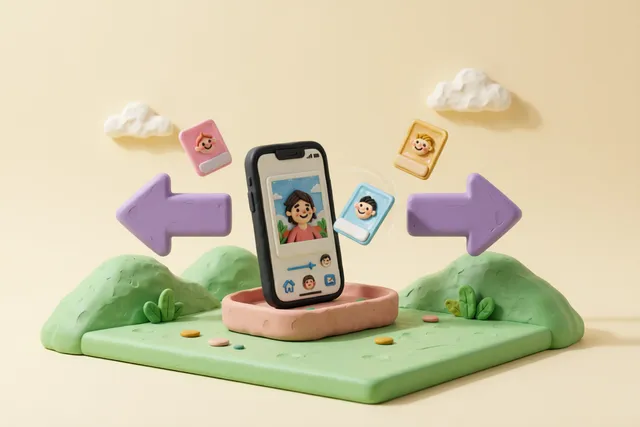
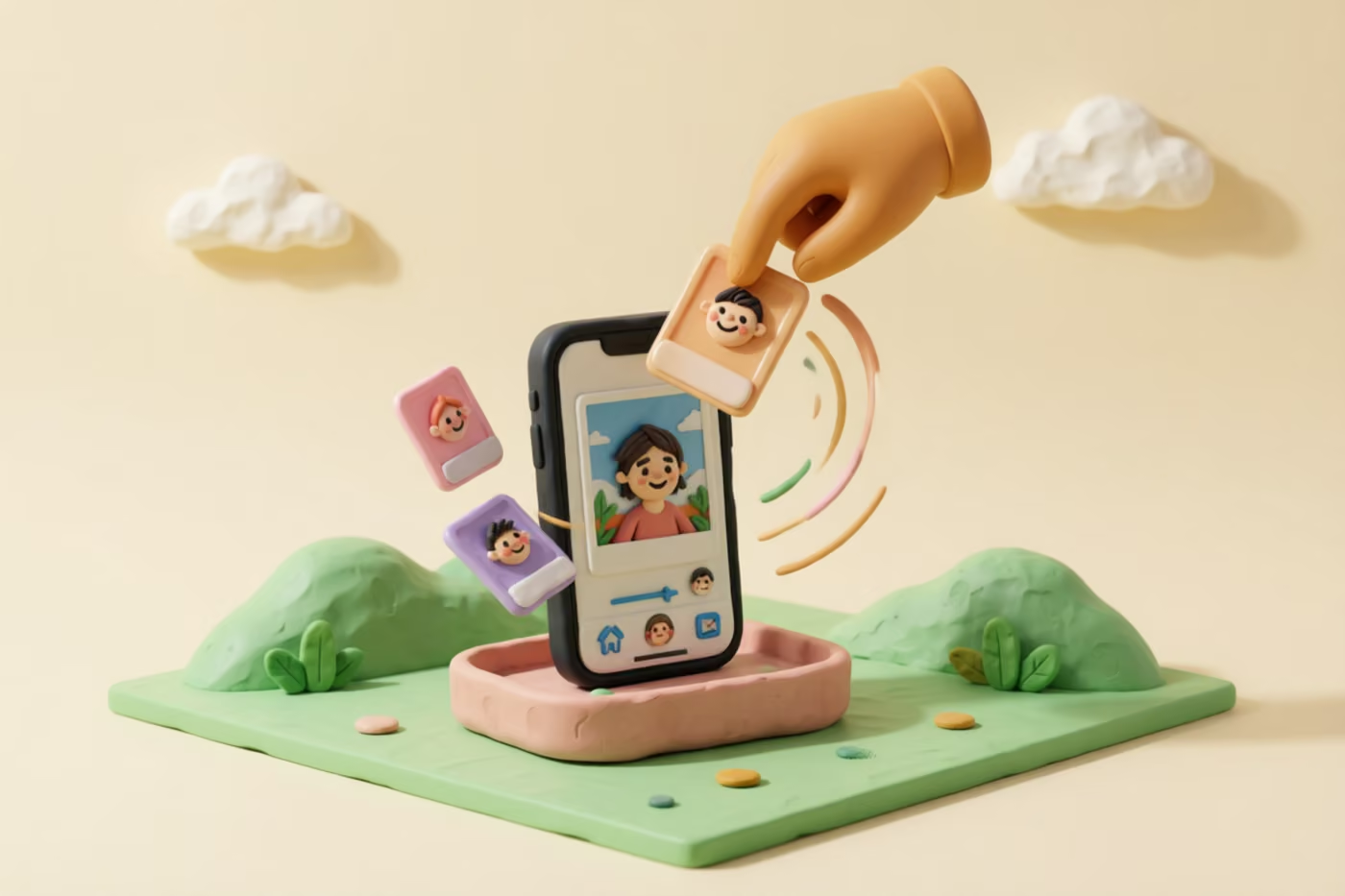
The swipe interface is the heart of TidyByte. Tap the "Swipe" tab on the home screen, and the app loads your photos in chronological order, starting with the oldest. You will see one photo at a time, full-screen, with minimal UI so you can focus on the image itself.
Swipe gestures
- Swipe left — Mark the photo for deletion. It moves into your review queue.
- Swipe right — Keep the photo. It stays in your library untouched.
- Swipe up — Skip for now. The photo will reappear later if you revisit the session.
- Tap the screen — Pause and zoom into the photo to check sharpness, faces, or details.
After you finish swiping through a batch, TidyByte presents a summary screen showing how many photos you marked for deletion and how much storage you stand to recover. Nothing is deleted until you explicitly confirm. This two-step process — mark, then confirm — ensures you never accidentally lose a photo you wanted to keep. You can undo individual marks from the summary screen before confirming.
Most users find that they can review 100 to 200 photos in about five minutes. If your library has thousands of photos, TidyByte lets you pause and resume at any time. Your progress is saved automatically, so you can close the app and pick up right where you left off later. Learning how to use TidyByte's swipe feature takes less than a minute — the gesture is intuitive enough that most people need no instructions at all.
Exploring the Cleanup Toolkit
Beyond swiping, TidyByte includes five specialized cleanup tools designed to target the most common sources of wasted storage. Each tool is accessible from the home screen and works independently, so you can tackle them in any order.
Duplicates
The duplicate finder uses SHA-256 hashing for exact matches and Apple's Vision framework for near-duplicates — photos that look similar but differ slightly due to editing, burst mode, or re-saves. TidyByte groups duplicates together and recommends the highest-quality version to keep. In testing, duplicate photos account for 8 to 15 percent of the average library, which translates to several gigabytes of recoverable space for most users.
Screenshots
TidyByte automatically identifies screenshots by analyzing image metadata and resolution patterns. You can review them in a dedicated list, select the ones you no longer need, and batch-delete them. Screenshots from old conversations, receipts, and memes tend to pile up — this tool surfaces them so you do not have to hunt manually.
Blurry and Low-Quality Photos
Using on-device Vision analysis, TidyByte scores each photo for blur, underexposure, and overexposure. Photos that fall below a quality threshold appear in the "Blurry" section, where you can swipe through them quickly. This tool is particularly useful for weeding out motion-blurred shots from concerts, sports events, and low-light situations.
Large Videos
Videos consume far more storage than photos — a single 4K clip can exceed 400 MB per minute. TidyByte's large video finder sorts your videos by file size so you can see the biggest offenders first. You can delete them outright or use the built-in compression tool to reduce file size by up to 60 percent without noticeable quality loss. Compression runs on-device using AVAssetExportSession and shows a live progress bar.
Using the Storage Dashboard
The Storage Dashboard gives you a bird's-eye view of how your photo library uses space. Tap the "Storage" tab to see a breakdown by media type: photos, videos, screenshots, and other categories. The dashboard displays total library size, the number of items in each category, and the percentage of storage each category consumes.
One of the most useful features is the space-after-cleanup estimate. As you use TidyByte's tools — swiping, deleting duplicates, compressing videos — the dashboard updates in real time to show how much storage you have recovered. This immediate feedback loop is motivating and helps you decide whether to keep going or stop for the day.
| Tool | Avg. Recovery | Time Required |
|---|---|---|
| Swipe Review | 1–3 GB | 5–15 min |
| Duplicate Detection | 2–5 GB | 3–10 min |
| Screenshot Cleanup | 500 MB–2 GB | 2–5 min |
| Blur Detection | 500 MB–1 GB | 3–8 min |
| Video Compression | 3–10 GB | 5–20 min |
TidyByte also stores periodic snapshots of your library's storage profile. Over time, you can see how your usage trends — whether you are accumulating more media or keeping things lean. This historical view is useful for setting personal storage goals and tracking your progress across multiple cleanup sessions.
Settings and Customization
TidyByte keeps its settings minimal by design, but the options available give you meaningful control over how the app behaves. Open the Settings tab to access the following preferences:
- Swipe direction — Reverse the default swipe directions if you are left-handed or prefer the opposite mapping.
- Haptic feedback — Toggle vibration on swipe actions. Enabled by default for tactile confirmation.
- Notification reminders — Schedule optional reminders to run a cleanup session weekly or monthly. Powered entirely by local notifications — no server involved.
- Storage display — Choose between binary (KiB, MiB, GiB) and decimal (KB, MB, GB) units for storage figures.
- Delete confirmation — Require Face ID or Touch ID before confirming deletions, adding a biometric safety gate.
All settings are stored locally on your device and never synced to any cloud service. TidyByte does not use iCloud key-value storage or any third-party analytics SDK. If you delete the app, your settings are removed along with it — there is no account to deactivate and no data lingering on a remote server.
For users who want to understand the technical implementation, TidyByte is fully open source. You can inspect every line of code on GitHub, verify that no analytics SDK, backend, or tracking is present, and even contribute improvements. The app is built with Swift and SwiftUI using Apple's native frameworks — no third-party dependencies.
Frequently Asked Questions
How do I get started with TidyByte?
Download TidyByte from the App Store for free, open the app, and grant photo library access when prompted. The home screen presents all cleanup tools in a clear grid — tap any tool to begin, or head straight to the swipe interface to start reviewing photos immediately. There is no account to create and no onboarding to sit through.
What permissions does TidyByte need?
TidyByte requires access to your photo library to scan, sort, and manage your media. It does not request camera, microphone, location, or network permissions. All analysis — blur detection, duplicate matching, screenshot identification — happens entirely on your device. You can revoke photo access at any time in iOS Settings.
How do I use the swipe feature?
Open the Swipe tab and TidyByte presents one photo at a time. Swipe left to mark a photo for deletion, swipe right to keep it, and swipe up to skip. Each decision is recorded so you can review everything before confirming the final delete. The gesture mirrors what you already know from popular dating apps, so there is virtually no learning curve.
What cleanup tools does TidyByte have?
TidyByte includes a swipe-based photo reviewer, exact and near-duplicate detection, a blur and low-quality finder, screenshot cleanup, large video identification with optional compression, and a full storage dashboard that breaks down space by media type. Each tool runs independently, so you can use them in any order based on what matters most to you.
Is TidyByte easy to use?
Yes. TidyByte was designed around the same swipe gesture millions of people already know from dating apps. No tutorials, no accounts, no cloud uploads — just open the app and start swiping. Most users reclaim gigabytes of storage within their first five-minute session. If you want to learn how to use TidyByte's more advanced features, each tool has a brief inline explanation when you open it for the first time.
Ready to clean up your photo library?
TidyByte is free, runs 100% on your device, and takes just minutes to use.